




IPTV Smarters Pro Review 2026: Setup Guide for All Devices
Complete IPTV Smarters Pro review and setup guide for 2026. Learn how to install Smarters IPTV Pro on Android, iOS, Fire Stick, and Windows, and add your M3U playlist in minutes.
If you’ve just signed up to an IPTV subscription and your provider recommends Smarters IPTV Pro, you’re in the right place. This guide covers everything: what the app is, why it’s one of the most popular IPTV players in Europe, and exactly how to install and configure it on every major device — step by step, no technical knowledge required.
What Is IPTV Smarters Pro?
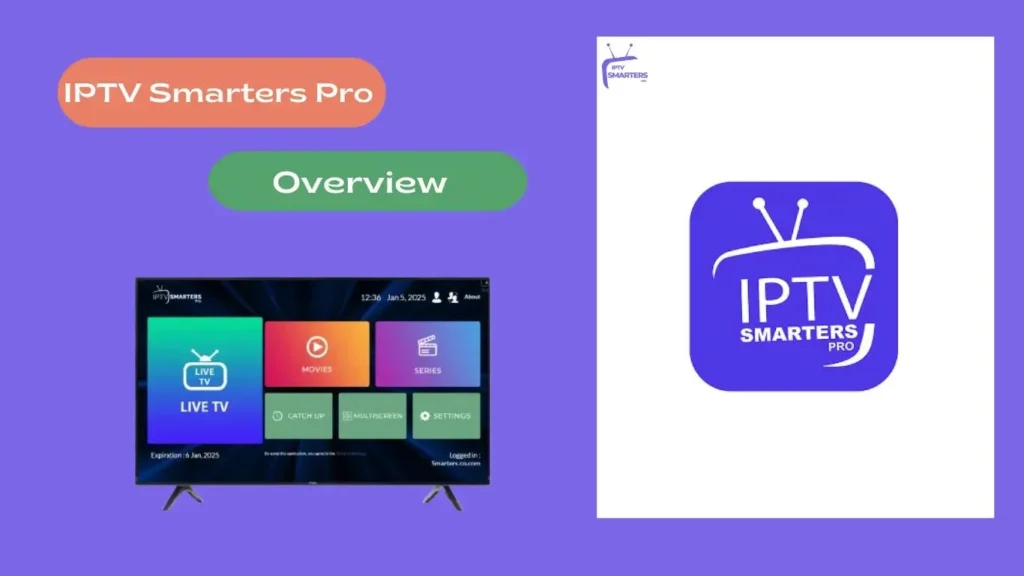
IPTV Smarters Pro is a free media player application that lets you watch live TV channels, on-demand films, and TV series through your IPTV subscription. Developed by WHMCS Smarters, it is one of the most widely used IPTV player apps in the world, particularly popular across Europe for its clean interface and broad device support.
The app itself does not provide any content. Think of it like a television set: it needs a signal source — in this case, your IPTV provider’s playlist — before it can display anything. Once connected to a valid subscription, it transforms into a full-featured TV experience with live channels, an electronic programme guide (EPG), and a video-on-demand (VOD) library.
Key facts at a glance:
| Developer | WHMCS Smarters |
| Platforms | Android, iOS, Apple TV, Fire TV, Windows, macOS, Web |
| Price | Free (some stores charge ~€2–€3 one-off) |
| Compatible with | M3U playlists, Xtream Codes API |
| Rating (Google Play) | 4.2 / 5 |
| Languages | 20+, including English, French, German, Spanish, Italian |
Key Features of IPTV Smarters Pro
Electronic Programme Guide (EPG)
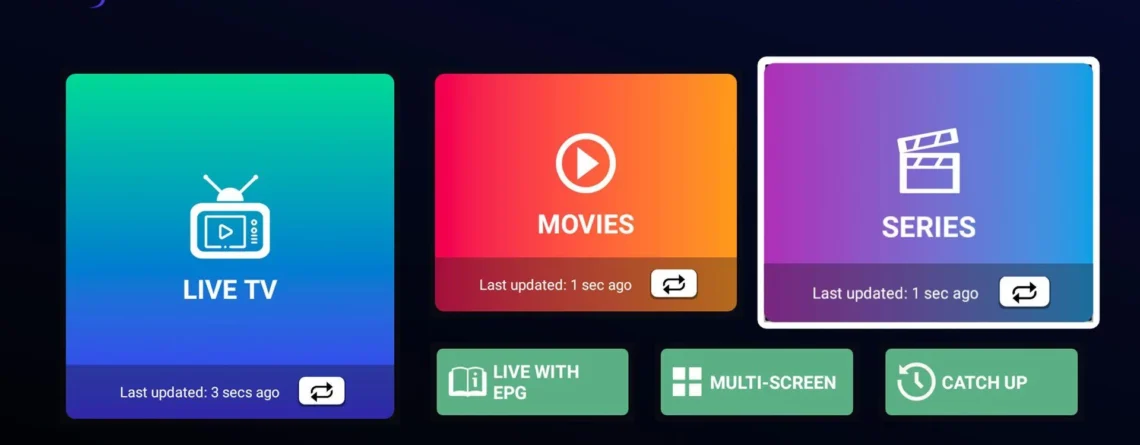
IPTV Smarters Pro loads your provider’s EPG automatically, giving you a full TV-style programme schedule. You can browse what’s on now and next, and — if your subscription supports it — jump directly to a programme description to set a reminder or access catch-up content.
Multi-Screen & Multiple Playlists
The app supports adding more than one IPTV subscription simultaneously. Each playlist appears as a separate profile, so different family members can have their own channel favourites and settings without interfering with each other.
Video on Demand (VOD) & Series
Beyond live TV, IPTV Smarters Pro has dedicated sections for movies and TV series provided by your subscription. These are displayed with artwork, descriptions, and ratings — similar in feel to Netflix — making it easy to browse and find something to watch.
Parental Controls
A PIN-protected parental control system lets you restrict access to specific channels or content categories. This is particularly useful in households with young children who share the same device.
External Player Support
For streams that your device struggles to play natively, IPTV Smarters Pro can hand off playback to an external app such as MX Player or VLC, ensuring near-universal codec compatibility.
Multi-Screen View
Select devices support a split-screen or picture-in-picture mode, allowing you to monitor one channel while browsing the guide on another — handy during live sports.
How to Install IPTV Smarters Pro on Android
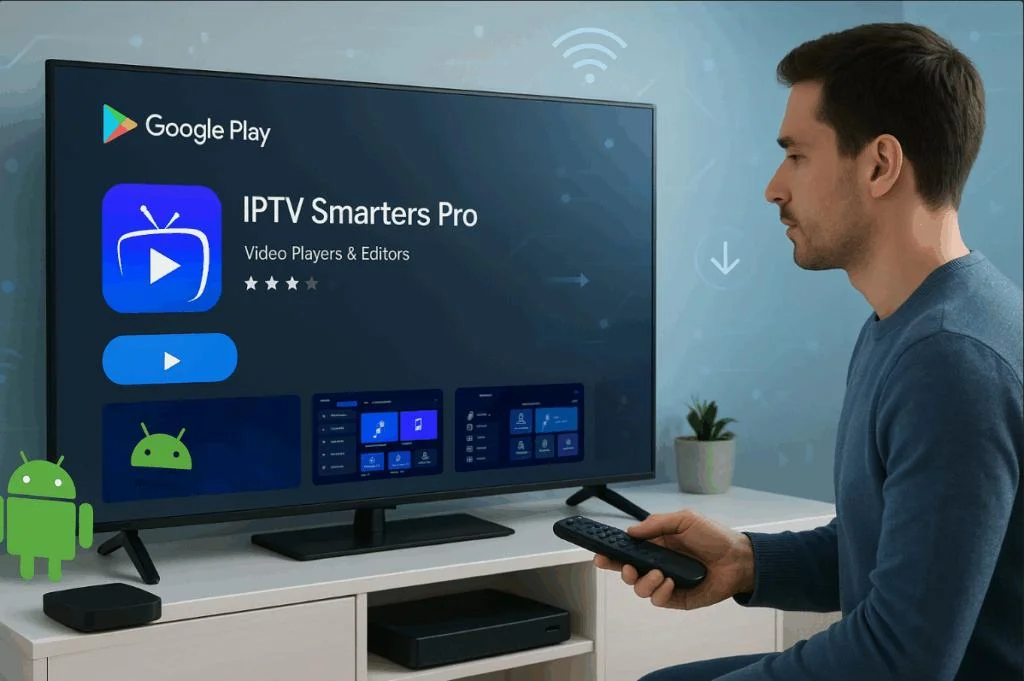
These steps apply to Android smartphones, tablets, and Android TV boxes.
- Open the Google Play Store on your Android device.
- Tap the search bar and type IPTV Smarters Pro.
- Select the app from the results — look for the developer name WHMCS Smarters to ensure you have the official version.
- Tap Install and wait for the download to complete (the app is under 30 MB).
- Tap Open once installation finishes.
- Accept the permissions requested (storage and network access are required for playlist loading).
- The app will launch and present you with a login/add playlist screen. You’re now ready to add your subscription (see the How to Add Your Playlist section below).
Tip: If you’re using an Android TV box rather than a phone, navigate to the Play Store using your remote and follow the same steps. Use a wireless keyboard or the remote’s voice search to type more easily.
How to Install IPTV Smarters Pro on iOS / Apple TV
Apple’s App Store has stricter policies than Google Play, and app availability can vary by region. Here’s how to get the app on Apple devices.
- Open the App Store on your iPhone, iPad, or Apple TV.
- Tap the Search tab and search for IPTV Smarters Pro.
- Select the app and check it is published by WHMCS Smarters.
- Tap Get (or the price if a charge applies in your region) and authenticate with Face ID, Touch ID, or your Apple ID password.
- Wait for the download to complete, then tap Open.
- On Apple TV, the app will appear in your home screen app grid — select it using the Siri Remote.
- Proceed to the Add Playlist screen to connect your IPTV subscription.
Note: If IPTV Smarters Pro is not available in your country’s App Store, GSE Smart IPTV is a well-regarded alternative for Apple devices. You can also change your App Store region temporarily to access the app — search online for your country’s specific instructions.
How to Install IPTV Smarters Pro on Amazon Fire Stick
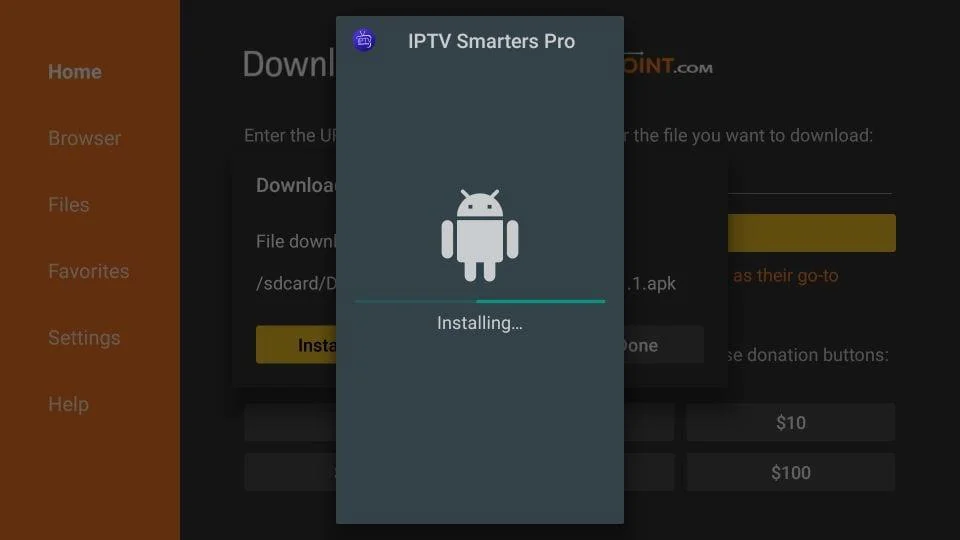
Amazon Fire TV devices (Fire Stick, Fire Stick 4K, Fire Cube) run a customised version of Android and require sideloading for apps not in the Amazon Appstore. This sounds complex but takes only a few minutes.
Part 1 — Allow apps from unknown sources:
- From the Fire Stick home screen, go to Settings (top menu).
- Select My Fire TV → Developer Options.
- Toggle Apps from Unknown Sources to On and confirm.
Part 2 — Install the Downloader app:
- Return to the Fire Stick home screen and open the Search function.
- Search for Downloader and install the free app by AFTVnews.
Part 3 — Download and install IPTV Smarters Pro:
- Open Downloader and select the URL bar.
- Type the official IPTV Smarters Pro APK download URL provided by your IPTV provider, or visit the WHMCS Smarters website to obtain the current direct APK link.
- Tap Go — the APK file will download automatically.
- When prompted, tap Install.
- Once installed, tap Open to launch IPTV Smarters Pro.
- You can delete the APK file when prompted to save storage space.
Tip: Some IPTV providers supply a custom-branded version of Smarters Pro with their details pre-loaded. Check with your provider first — this can save several steps.
How to Install IPTV Smarters Pro on Windows PC
Watching IPTV on a Windows laptop or desktop is straightforward with the official Windows client.
- Open your browser and go to the official WHMCS Smarters website to find the Windows download link.
- Download the Windows installer (.exe file) to your Downloads folder.
- Double-click the installer to launch it.
- If Windows SmartScreen shows a warning, click More info → Run anyway (this is normal for apps not distributed through the Microsoft Store).
- Follow the installation wizard — accept the licence agreement and choose your install location.
- Click Finish when complete. The app will open automatically.
- Proceed to add your IPTV playlist as described in the next section.
Alternative: IPTV Smarters Pro also offers a web player accessible directly in any browser — no installation needed. Log in with your Xtream Codes credentials on the Smarters website to use it.
How to Add Your M3U Playlist or Xtream Codes
This is the most important step — connecting the app to your IPTV subscription. Your provider will have sent you one of two things: an M3U URL or Xtream Codes login details. Here’s how to use each.
Adding an M3U Playlist URL
- Open IPTV Smarters Pro and tap Add User or Add New User.
- Select Load Your Playlist or File/URL.
- In the Playlist Name field, type anything you like (e.g. My IPTV).
- Paste your M3U URL into the playlist URL field. This is usually a long web address ending in
.m3uor.m3u8. - Tap Add User to confirm.
- The app will fetch your channels. Depending on the size of your playlist, this may take 10–60 seconds.
- Once loaded, you’ll see your channels organised by group. Tap any channel to begin watching.
Adding Xtream Codes Login Details
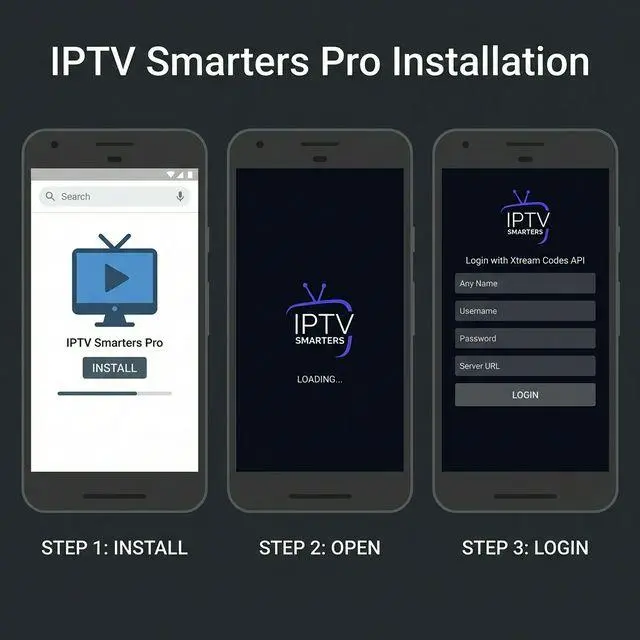
- Open IPTV Smarters Pro and tap Add User or Add New User.
- Select Xtream Codes API.
- Fill in the following fields using the details from your provider:
- Your Name: Any label (e.g. Main Account)
- Username: Provided by your IPTV provider
- Password: Provided by your IPTV provider
- URL: The server address provided by your IPTV provider (e.g.
http://provider-server.com:8080)
- Tap Add User.
- The app will verify your credentials and load your full channel list, EPG, and VOD library.
Tip: Xtream Codes is the preferred connection method where available. It loads EPG data, movie descriptions, and series artwork automatically, giving you a richer experience than a plain M3U URL.
Troubleshooting Common Issues
Channels Won’t Load / Buffering Constantly
- Check your internet speed. Run a test at speedtest.net — you need at least 10 Mbps for HD, 25 Mbps for 4K.
- Switch from Wi-Fi to a wired Ethernet connection if possible. Powerline adapters are a good middle ground for Fire Sticks.
- Contact your IPTV provider. Server-side issues are the most common cause of widespread buffering and are outside the app’s control.
App Crashes on Launch
- Clear the app cache: Go to your device Settings → Apps → IPTV Smarters Pro → Clear Cache, then reopen the app.
- Uninstall and reinstall the app to ensure you have the latest version.
- On Fire Stick, restart the device by holding the Select and Play buttons for 5 seconds.
EPG Not Loading or Showing Wrong Times
- Go to Settings within the app and check your timezone is set correctly — EPG times are timezone-dependent.
- Tap Update EPG or Refresh in the settings menu to force a fresh download.
- If EPG remains empty, your provider may not include EPG data. Ask them for an external XMLTV EPG URL to enter manually.
Playlist Says “Not Authorised” or “Expired”
- Your IPTV subscription may have expired or your account may be logged in on too many devices simultaneously. Check with your provider — most limit active connections to 1 or 2 streams at a time.
Video Plays but No Sound
- Check your TV or device volume first.
- In the app player, tap the screen to reveal controls and check that audio is not muted within the player.
- Try switching the audio track using the player controls (some streams carry multiple audio languages).
Is IPTV Smarters Pro Free?
Yes — in most cases, IPTV Smarters Pro is free to download and use. On Google Play, it is listed at no charge. On some third-party stores or regional App Store listings, a small one-off fee of €2–€3 may apply.
There is no monthly subscription fee for the app itself, no premium tier, and no features locked behind a paywall. Every feature described in this guide — EPG, VOD, parental controls, multiple playlists, external player support — is available from the moment you install it.
Your only ongoing cost will be your IPTV content subscription from a third-party provider. The app and the subscription are entirely separate products.
Frequently Asked Questions
1. Is IPTV Smarters Pro the same as IPTV Smarters?
They are related but different versions. IPTV Smarters is the older, original app. IPTV Smarters Pro is the updated version with a redesigned interface, improved EPG handling, and VOD support. Most providers now recommend the Pro version — use that one if you’re setting up for the first time.
2. How many devices can I use IPTV Smarters Pro on?
The app itself has no device limit — you can install it on as many devices as you like. However, your IPTV subscription will typically limit you to 1 or 2 simultaneous streams. Running the app on 10 devices is fine, but you can only watch on 1 or 2 at the same time (depending on your plan).
3. Can I use IPTV Smarters Pro without a subscription?
No. The app is a media player — it requires a valid IPTV subscription (M3U URL or Xtream Codes credentials) to display any content. Without a subscription, it will open to an empty login screen.
4. Does IPTV Smarters Pro support 4K streaming?
Yes, provided your IPTV subscription offers 4K streams and your device and internet connection can handle them. On a Fire Stick 4K or Nvidia Shield with a 25+ Mbps connection, 4K playback works smoothly. On devices using the built-in player, performance depends on the device’s hardware decoding capabilities.
5. Why does my IPTV Smarters Pro keep asking me to log in again?
This usually happens when your IPTV subscription credentials change (providers occasionally rotate server addresses or reset passwords) or when the app’s local cache is cleared by the OS. Save your login details somewhere secure and re-enter them when prompted. Using Xtream Codes rather than M3U tends to be more stable across sessions.
Final Verdict
IPTV Smarters Pro earns its place as one of the most recommended IPTV players for a reason: it’s free, easy to use, available on almost every device, and handles the full range of IPTV content — live TV, VOD, and series — in a single, polished interface. For first-time IPTV users in Europe, it remains one of the safest and most straightforward starting points available.
Set aside 10 minutes to follow the steps in this guide, and you’ll be watching live television through your internet connection before your next cup of coffee is finished.
Published: May 2026 | Tested on: Samsung Galaxy S24, iPhone 15 Pro, Amazon Fire Stick 4K Max, Windows 11 PC