




IPTV on Amazon Fire TV Stick: Full Installation Guide (2026)
If you own an Amazon Fire TV Stick and want to access IPTV content, you are in the right place. This guide walks you through everything you need — from enabling the correct settings to installing the best apps and entering your playlist credentials. Whether you are new to IPTV Amazon Fire TV Stick or switching apps, follow along step by step.
What You Need Before You Start
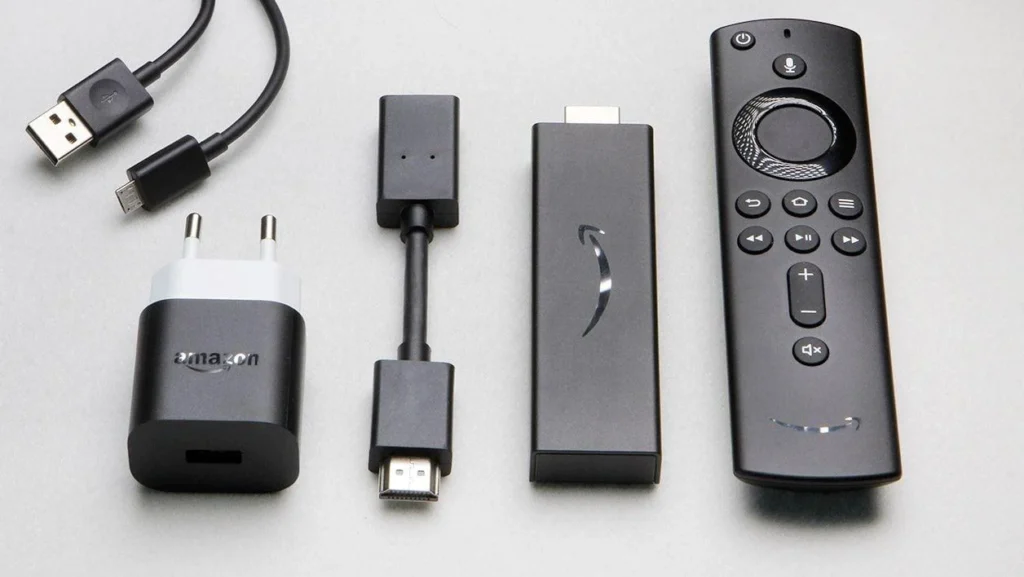
Before installing any IPTV app, make sure you have the following ready:
- An Amazon Fire TV Stick (any generation — Fire Stick 4K, Fire Stick Lite, Fire Stick 4K Max, or the latest 2025/2026 models all work).
- A stable internet connection. IPTV streams are bandwidth-heavy. For SD content, aim for at least 10 Mbps; for HD, 25 Mbps; for 4K, 50 Mbps+. A wired Ethernet connection via the Fire TV Ethernet adapter is ideal.
- An active IPTV subscription. Your provider will give you either:
- An M3U playlist URL, or
- Xtream Codes credentials (a server URL, username, and password).
- A free Amazon account (you already have one if you use a Fire Stick).
- Enough storage. Most IPTV apps are under 30 MB, so this is rarely an issue.
Tip: Keep your M3U URL or Xtream Codes in a note on your phone — you will need to type them into your Fire Stick shortly.
How to Enable Apps from Unknown Sources on (IPTV Amazon Fire TV Stick)
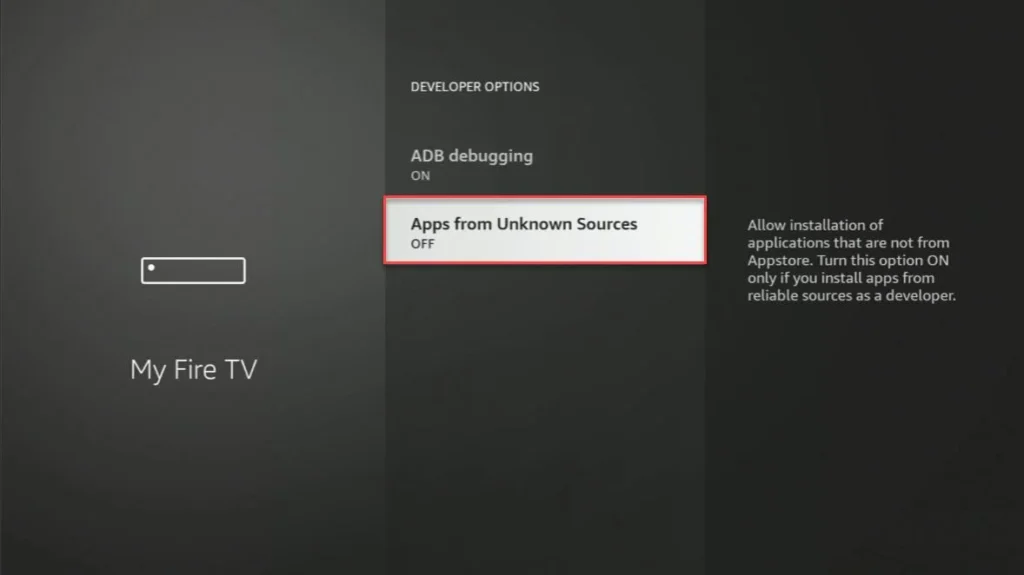
Amazon’s Fire OS restricts apps to those available in the Amazon Appstore by default. To install third-party IPTV apps you must allow installation from unknown sources. This is safe as long as you only download apps from trusted URLs.
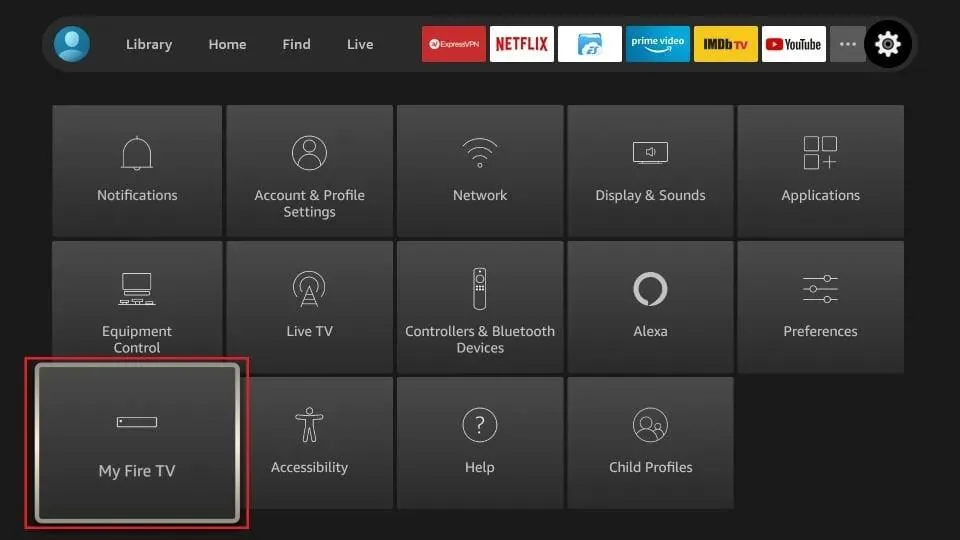
- From the Fire Stick home screen, navigate to Settings (the gear icon in the top menu).
- Select My Fire TV.
- Choose Developer Options. (If you do not see this, select “About” and click your Fire TV name seven times to unlock developer options.)
- Toggle Apps from Unknown Sources to ON.
- A warning prompt will appear — select Turn On to confirm.
- While still in Developer Options, also enable ADB Debugging (useful for troubleshooting later).
You only need to do this once. Your Fire Stick will remember the setting.
Method 1 — Install IPTV Smarters Pro via Downloader App (Numbered Steps)
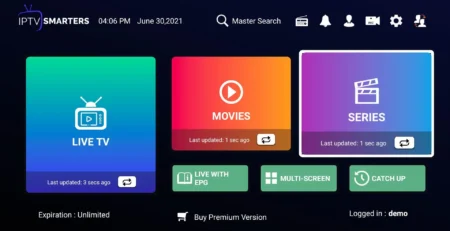
IPTV Smarters Pro is one of the most popular IPTV players available, supporting both M3U and Xtream Codes. The Downloader app is the easiest way to sideload it onto your Fire Stick.
Step 1 — Install the Downloader App
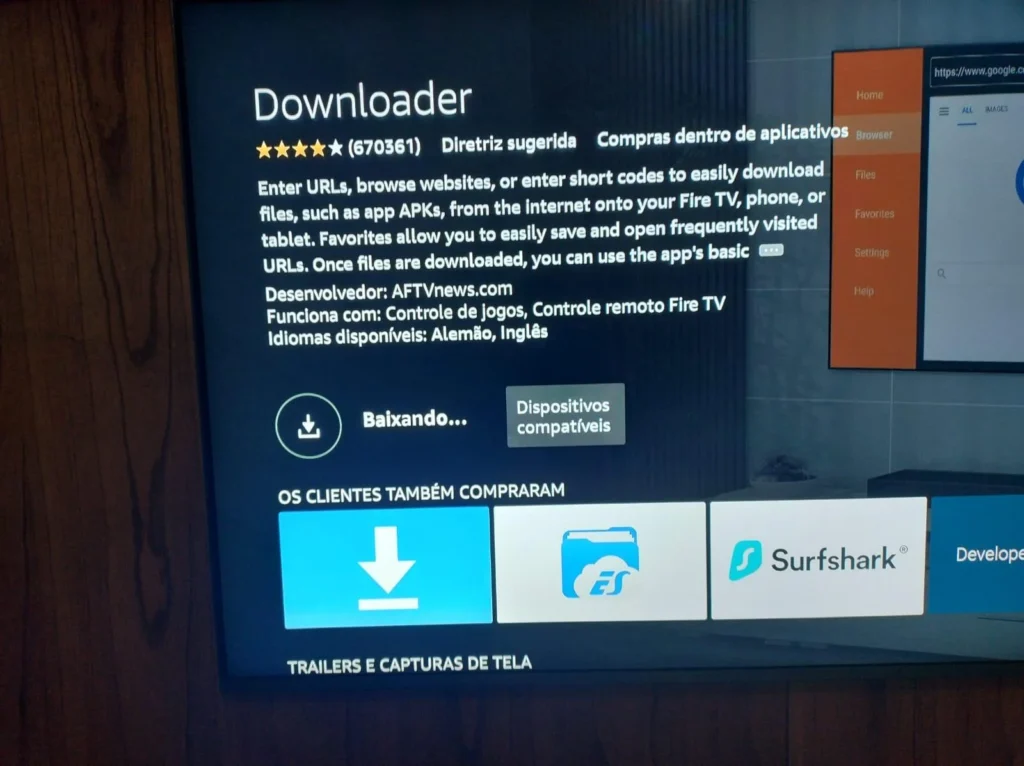
- Press the Home button on your remote.
- Go to the Search icon (magnifying glass) in the top-left corner.
- Type “Downloader” and select the app published by AFTVnews.
- Click Download and wait for it to install.
- Open Downloader once installed.
Step 2 — Download IPTV Smarters Pro
- In the Downloader app, tap the URL bar and enter the official IPTV Smarters APK URL. You can find the latest direct link at the official IPTV Smarters website (
iptvsmarters.com) — copy the APK download link to your phone and type it into Downloader. - Tap Go. The APK file will begin downloading.
- Once the download finishes, tap Install on the prompt that appears.
- Wait for the installation to complete, then tap Open to launch IPTV Smarters Pro immediately, or Done to return to Downloader.
- Tap Delete when Downloader asks if you want to remove the APK — this frees up storage.
Step 3 — Set Up IPTV Smarters Pro
- Open IPTV Smarters Pro from your app library.
- Accept the Terms of Service.
- On the login screen, choose Login with Xtream Codes API or Load your Playlist / M3U URL depending on what your provider gave you.
- Fill in your credentials (see the dedicated section below for full details).
- Tap Add User or Load. Your channels, VOD, and EPG will begin populating.
Method 2 — Install TiviMate on Fire Stick
TiviMate is widely regarded as the best-looking IPTV player on Fire Stick, with a slick TV-guide interface. It is available on the Amazon Appstore for free (with a premium companion app unlock).
- From the Fire Stick home screen, press the Search icon.
- Search for “TiviMate IPTV Player”.
- Select the app from the results and click Get (or Download).
- Wait for the installation to complete — it takes under a minute.
- Open TiviMate. On first launch, it will prompt you to add a playlist.
- Select Add Playlist and choose your input type (M3U URL or Xtream Codes).
- Enter your credentials (full details in the section below).
- TiviMate will sync your channels and build an EPG (Electronic Programme Guide). This can take 1–3 minutes on a first load.
- Once complete, navigate the guide-style interface using your Fire Stick remote’s directional pad.
Note: TiviMate’s free version limits you to one playlist. The TiviMate Premium companion app (a small one-time or annual purchase) unlocks multiple playlists, recording, and advanced features.
Method 3 — Install Flix IPTV on Fire Stick
Flix IPTV offers a clean, Netflix-style interface that many users prefer for browsing VOD content alongside live channels.
- Open the Downloader app (install it via the Amazon Appstore if you have not already — see Method 1, Step 1).
- In Downloader, navigate to
flixiptv.com/downloador search for the latest APK link via a trusted IPTV forum. - Enter the APK URL in Downloader’s address bar and tap Go.
- Once downloaded, tap Install when prompted.
- Tap Open to launch Flix IPTV.
- Select Add Playlist from the main menu.
- Choose M3U URL or Xtream Codes and enter your subscription details.
- Press Load and wait for the channel list to sync.
- Arrange your favourite channels into custom groups using the Favourites feature for quicker access.
How to Enter Your M3U Playlist or Xtream Codes
Regardless of which app you use, the process for entering your IPTV credentials follows the same pattern.
Entering an M3U URL
- Look for the option labelled “Add M3U URL”, “Load Playlist”, or similar.
- Type (or paste) your full M3U link. It will look something like:
http://yourprovider.com:8080/get.php?username=XXX&password=YYY&type=m3u_plus - Make sure the URL includes the full address, port number, and any query parameters your provider gave you.
- Tap Load or Confirm.
Entering Xtream Codes
- Choose “Xtream Codes API” or “Login with Server”.
- Enter the three pieces of information your provider supplied:
- Server URL (e.g.,
http://yourprovider.com:8080) - Username
- Password
- Tap Add or Connect.
EPG (TV Guide) Setup
Most apps auto-fetch the EPG from your provider. If the guide is empty:
- Go to Settings → EPG within the app.
- Enter the EPG URL your provider gave you (often the same base URL with
/xmltv.php?...parameters). - Force a manual refresh.
Best IPTV Apps Available Directly in the Amazon Store
You do not always need to sideload. Several capable IPTV apps are available natively on the Amazon Appstore — no unknown sources required:
| App | Appstore Available | Highlights |
|---|---|---|
| TiviMate IPTV Player | ✅ Yes | Best EPG interface, premium features available |
| IPTV Smarters Pro | ✅ Yes (some regions) | Widely supported, Xtream + M3U |
| SS IPTV | ✅ Yes | Simple interface, good for beginners |
| Perfect Player | ✅ Yes | Lightweight, customisable |
| GSE Smart IPTV | ✅ Yes | Supports multiple playlist formats |
To find these apps: press the Search icon on your Fire Stick home screen, type the app name, and select Download from the result. No developer settings changes needed.
Troubleshooting — Buffering, Black Screen, Freezing
IPTV issues on Fire Stick are almost always caused by one of four things: internet speed, server load, app cache, or device performance. Here is how to fix the most common problems.
Buffering / Constant Loading
- Test your internet speed using the Speedtest app from the Amazon Store. You need at least 25 Mbps for reliable HD IPTV.
- Switch from Wi-Fi to Ethernet. Use the Amazon Ethernet Adapter for Fire TV for a stable wired connection.
- Change your stream quality. In your IPTV app settings, lower the stream resolution temporarily.
- Contact your IPTV provider. Buffering is often a server-side issue, especially during peak hours.
Black Screen / No Video
- Check the stream URL is correct. Re-enter your M3U or Xtream credentials carefully — a single typo breaks the stream.
- Clear the app cache. Go to Settings → Applications → Manage Installed Applications → select your IPTV app → Clear Cache → Clear Data.
- Try a different player. Some streams only work with specific decoders (e.g., use hardware vs. software decoding in TiviMate settings).
Freezing / Crashing
- Restart your Fire Stick. Go to Settings → My Fire TV → Restart.
- Free up RAM. Close other background apps. IPTV apps work best when Fire Stick has as much memory as possible.
- Reinstall the app. Uninstall the IPTV app, restart the Fire Stick, then reinstall fresh.
- Check for Fire OS updates. Go to Settings → My Fire TV → About → Check for System Updates.
EPG Not Loading
- Manually refresh the EPG from within the app’s settings.
- Confirm your provider’s EPG URL is active — ask your provider for the updated link.
FAQ
Q: Is IPTV legal on Fire Stick?
A: The apps themselves are legal. Whether the content is legal depends entirely on your IPTV provider and what they are licensed to stream. Always use a reputable provider and check the content licensing in your country.
Q: Do I need a VPN for IPTV on Fire Stick?
A: A VPN is not required but is recommended if your internet provider throttles streaming traffic, or if you want privacy. ExpressVPN, NordVPN, and Surfshark all have Fire Stick apps available in the Amazon Store.
Q: What is the best IPTV app for Fire Stick in 2026?
A: TiviMate is the top choice for its polished EPG interface and stability. IPTV Smarters Pro is a close second and works well out of the box.
Q: Can I use IPTV on a Fire Stick Lite?
A: Yes. All methods in this guide work on the Fire Stick Lite. Note that the Lite model does not support 4K output, so 4K streams will downscale.
Q: My M3U URL stopped working after a few days — why?
A: Many providers rotate URLs periodically. Log in to your provider’s portal or contact their support to get a fresh M3U link. Xtream Codes credentials tend to be more stable.
Q: Can I record live IPTV on Fire Stick?
A: TiviMate Premium supports recording via an external USB drive connected through an OTG cable and USB hub. Most other apps do not support recording natively.
Q: How many streams can I watch at once?
A: This depends on your IPTV subscription plan. Most providers offer 1–4 simultaneous connections. Check your plan details before trying multi-room viewing.
Last updated: May 2026. Steps are accurate for Fire OS 8 and current app versions at time of publication.